
Create your style
Depending on your subscription, you can create one or more Styles. These styles allow you to, depending on your target audience, personalize your reports. When enabled, multiple styles can be used for either internal or external reports.
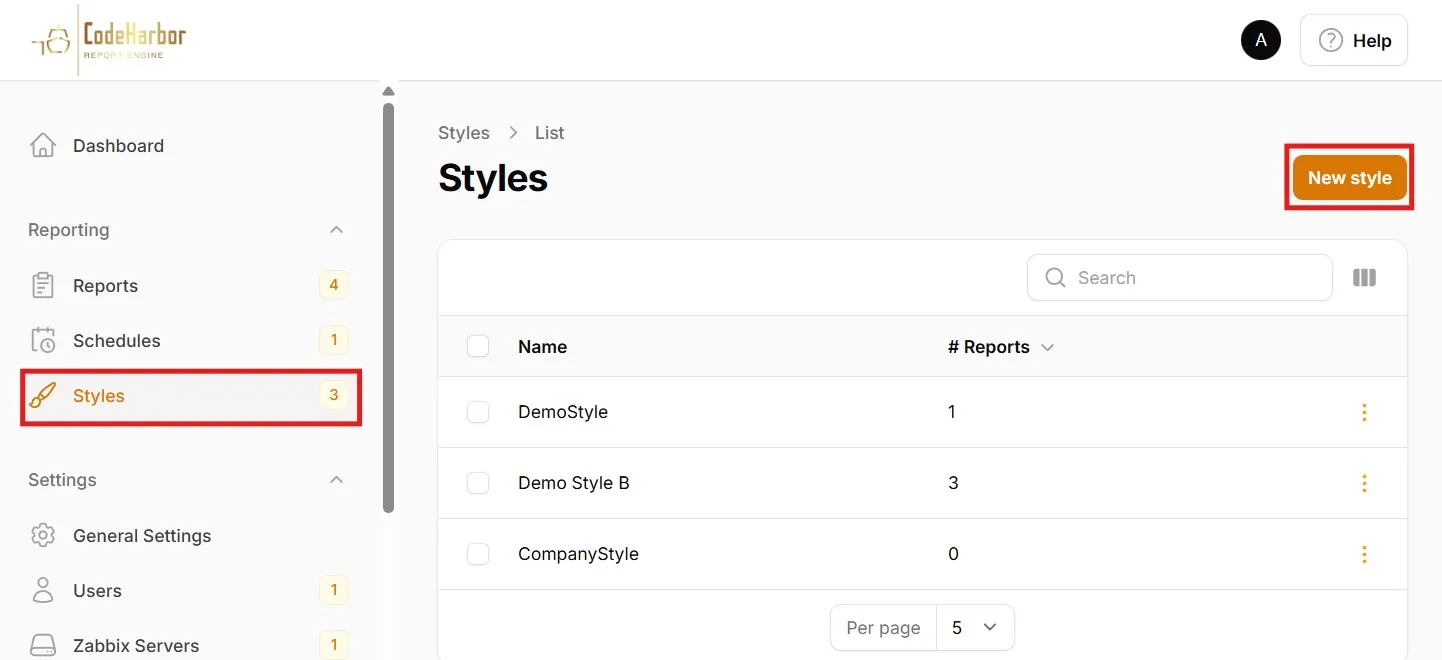
Go to “Styles” in the menu.
Select “New style”
The Style creation page contains multiple Tabs. Follow the steps below to create your perfect style.
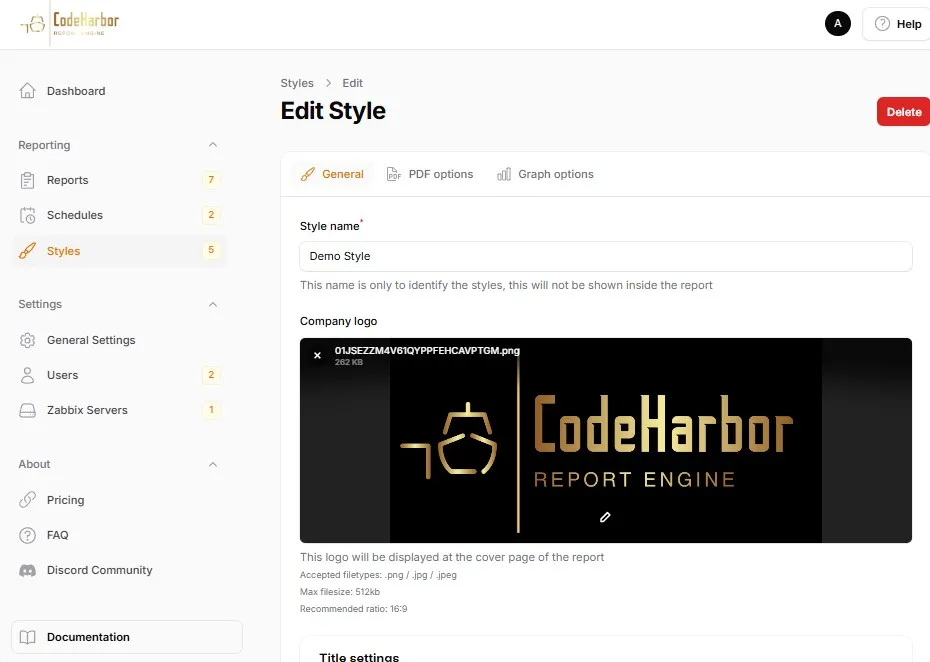
Tab - General
Section titled “Tab - General”Style Name
Section titled “Style Name”This name is only used for reference. You will find this name in the select box when creating a report.
You can upload a Company Logo. This logo will be displayed on the cover page of your reports.
Title Settings
Section titled “Title Settings”The Title Font lets you define your favorite Font. The Title font size selects the general font-size of your titles. In a report, you can define 3 title levels. The Title color lets you define your custom color for your titles.
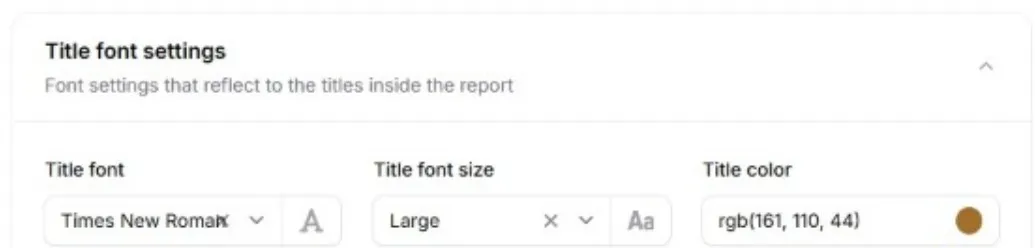
Further options include:
Title Numbers to enable or disable numbering of all titles in your report. The number formats are
1
1.1
1.1.1
Title indent enabling a small indent in sub-level titles.
Tab - PDF options
Section titled “Tab - PDF options”you can now select a few PDF options
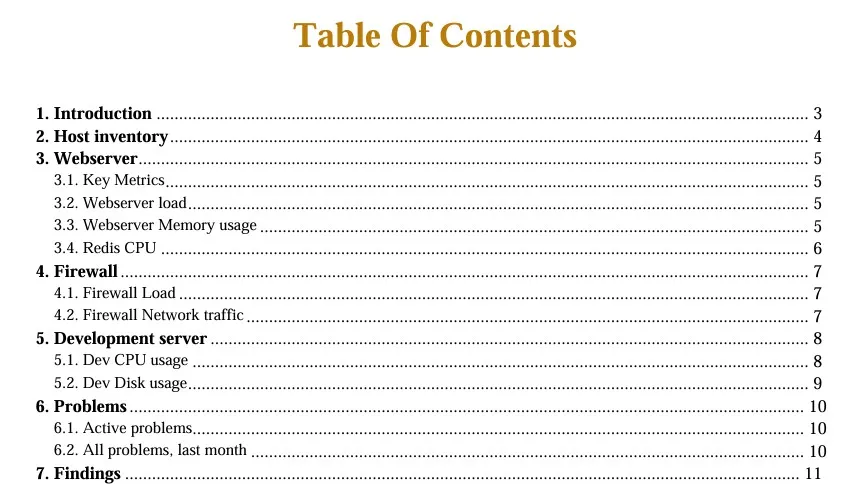
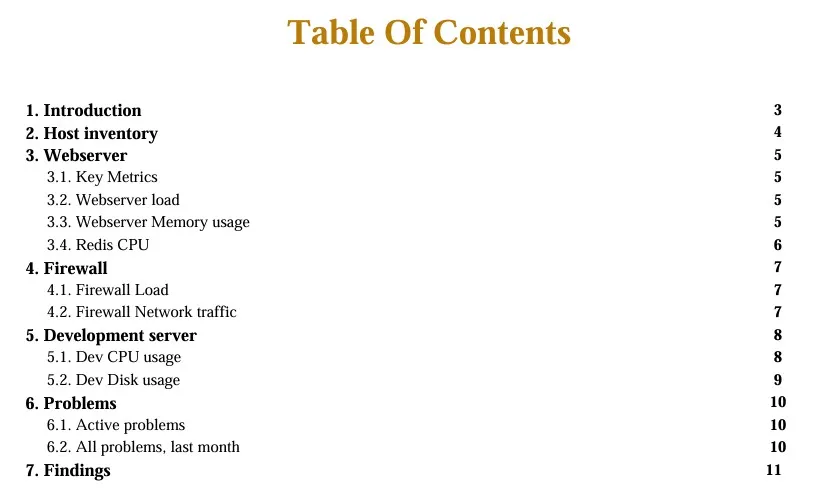
Dotted table of contents
Section titled “Dotted table of contents”When enabled, a dotted line is added between the title and the page number
Hide disabled hosts
Section titled “Hide disabled hosts”When enabled, hosts that are disabled in your Zabbix environment are not added to your reports. Note, often these hosts do reserver resources in your environment.
Tab - Graph Options
Section titled “Tab - Graph Options”You can now select your Graph options
Graph dark mode
Section titled “Graph dark mode”When enabled, your graphs will be in dark mode
Click “Create” to save your style