
Create your schedules
All your saved reports can be created automatically by creating a schedule. These schedules will generate your report, mail to your desired recipients and be available in your Report History.
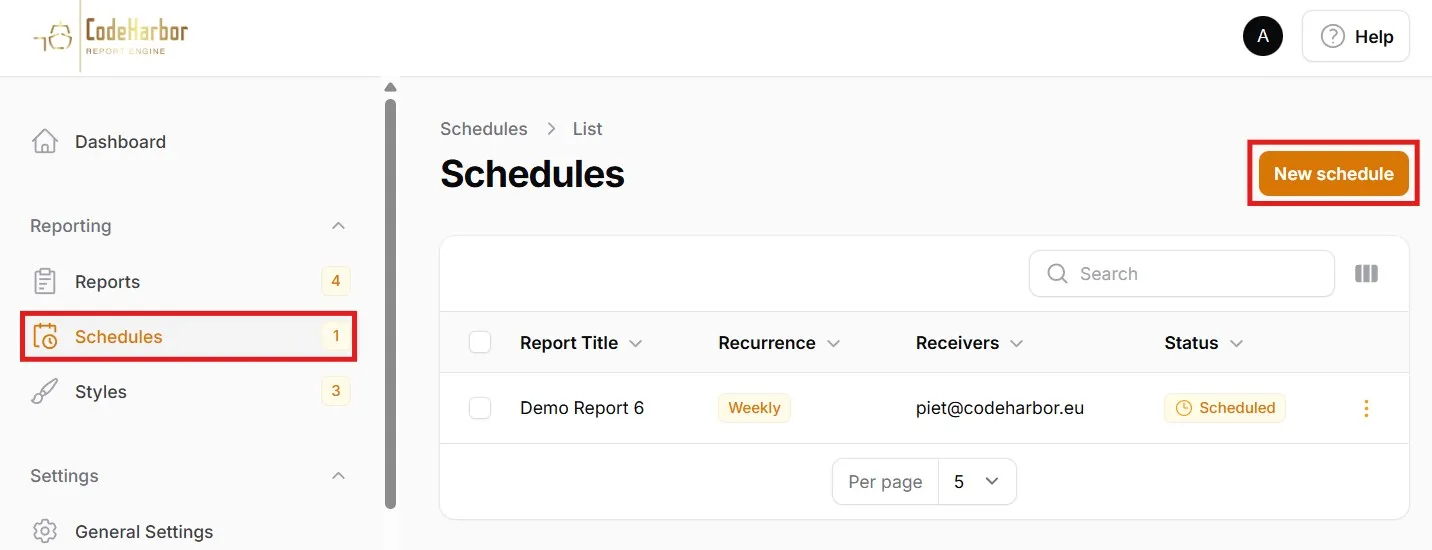
Select Schedules from the left menu to open your Schedule overview page.
Click the “Create Schedule” button, located on the top right of your page. A screen will open to define your new schedule.
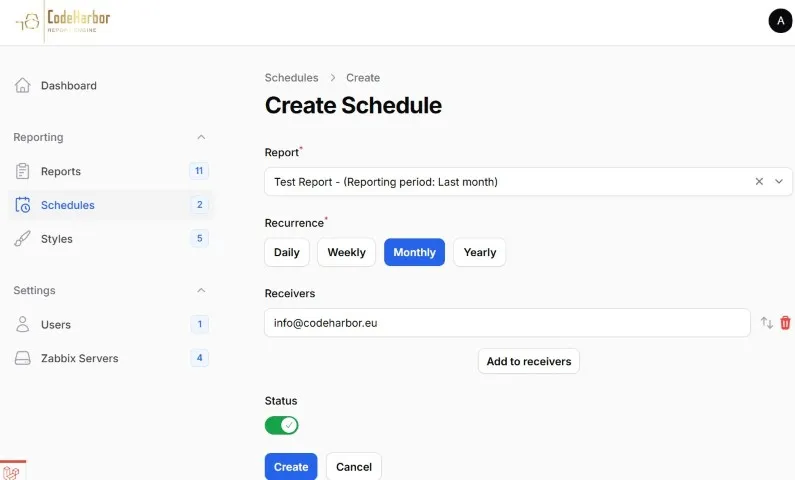
Select Report
Section titled “Select Report”From the dropdown you can select a saved Report.
Select Recurrence
Section titled “Select Recurrence”Select the Recurrence you like the report to be scheduled.
- Daily
- Weekly
- Monthly
- Yearly
The reports are executed the first day of the Recurrence, between 00:00 and 01:00 AM. The Report content is defined in your Report, the Schedule only defines the timing your report is executed
Define Subject
Section titled “Define Subject”Depending on your subscription, you can write your own mail Subject When left empty, the default mail subject will be used (recurrence period + report title)
Define recipients
Section titled “Define recipients”Depending on your subscription, you can define one or multiple report recipients.
Be sure to allow e-mails from [email protected].
Ensure that your SMTP settings are correctly configured in the Settings -> Mail section.
Click “Add to Receivers” to add the recipient to your schedule.
Activate
Section titled “Activate”You can activate or deactivate your schedule by setting the “Enable” radio button.
Click the “Create” button to save and create your report. A save message will be displayed on the top right of your browser.
Your report will now be generated at your requested intervals.